How Tonnemark works
Since 1 January 2026, EU importers of steel, aluminium, cement, fertilisers and hydrogen must buy CBAM certificates for the emissions embedded in those goods. They can only use your plant’s real figures if you give them, and the figures have been verified. Otherwise they must use the EU’s default values, which are high on purpose and carry a mark-up.
Tonnemark is where you, the producer, record your installation’s fuels, materials, electricity and production. It applies the EU calculation method and produces the one number your buyer needs for each product: its specific embedded emissions, in tonnes of CO₂e per tonne of product. You then share those numbers with each buyer through a private link, with Excel and CSV downloads.
Who does what
| Who | Their part |
|---|---|
| You (installation operator) | Enter monitoring data in Tonnemark, prepare for verification, share statements with buyers. |
| Accredited verifier | Checks your data and evidence, including a site visit for the first definitive-period report. |
| EU buyer (CBAM declarant) | Uses your figures in their CBAM declaration and surrenders certificates for them. |
Words you’ll see
- Installation
- One production site, for example a steel mill or a cement plant.
- Reporting period
- The time span your figures cover, normally one calendar year.
- Production process
- A part of the plant that makes one kind of CBAM good by one route, such as an electric arc furnace or a rolling mill.
- Activity level
- Tonnes produced by a process in the period.
- Fuels and materials
- Everything that releases CO₂ on site: natural gas, coal, coke, limestone, electrodes. The regulation calls these source streams.
- Precursor
- A CBAM good used as an input to another, such as billets rolled into rebar or clinker ground into cement.
- Good
- What you sell to the EU, identified by its 8-digit CN code.
- SEE
- Specific embedded emissions: tonnes of CO₂e per tonne of good. Reported as direct (from fuels and materials) and indirect (from electricity).
- Default value
- The EU’s fallback intensity for a good from your country, used when the buyer has no actual data.
- Benchmark
- The EU reference intensity that sets how much of the buyer’s obligation is offset by free allocation.
The workflow at a glance
- Create a workspace and add your installation.
- Describe the production processes and how many tonnes each produced.
- Enter fuels and materials, electricity and precursors, each with its evidence.
- List the goods you export with their CN codes.
- Check the results and the verification checklist, then have the period verified.
- Share a statement with each EU buyer.
Create your workspace
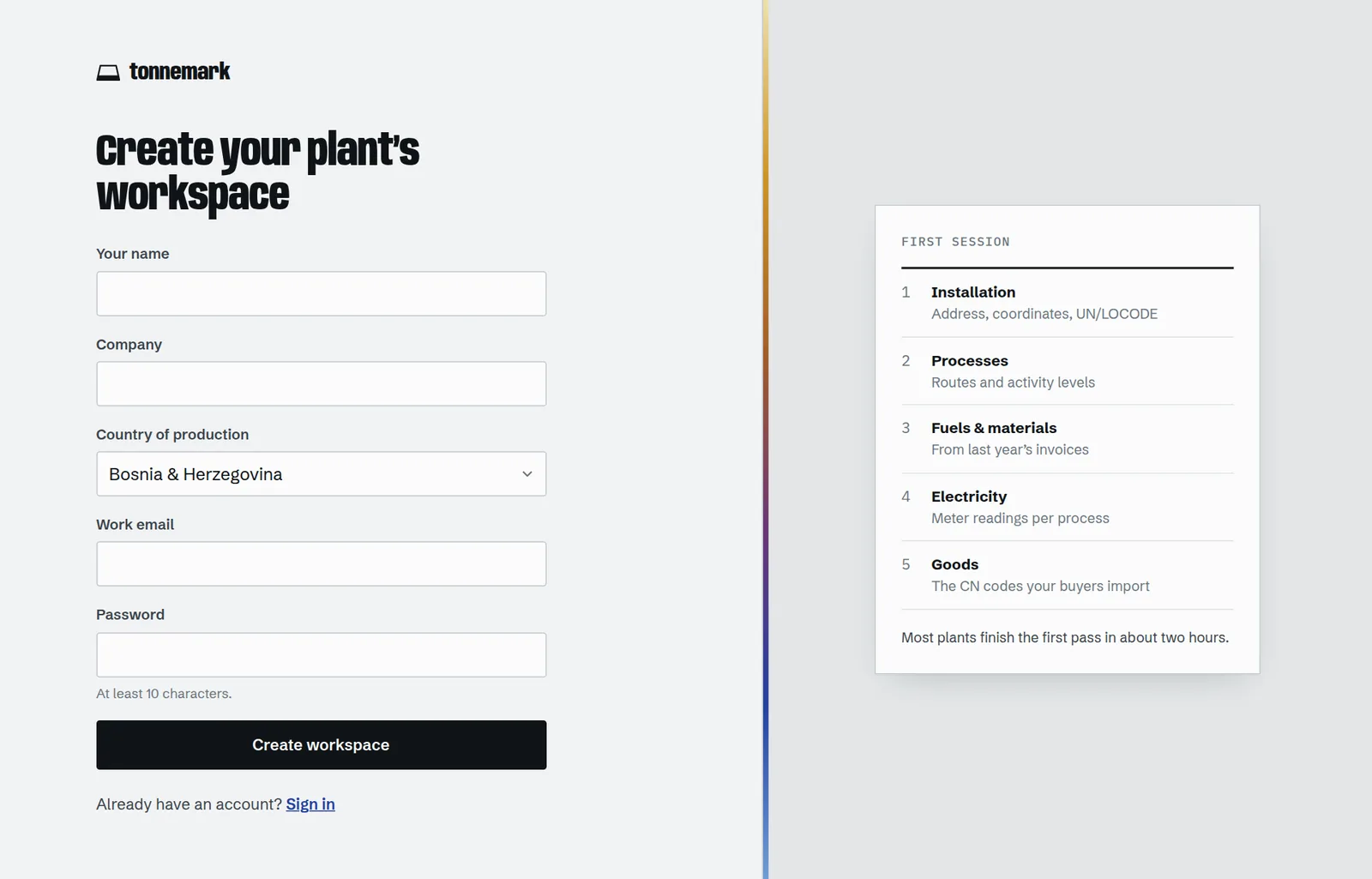
Go to Create a workspace and enter your name, company, country of production, work email and a password of at least 10 characters. You become the workspace owner.
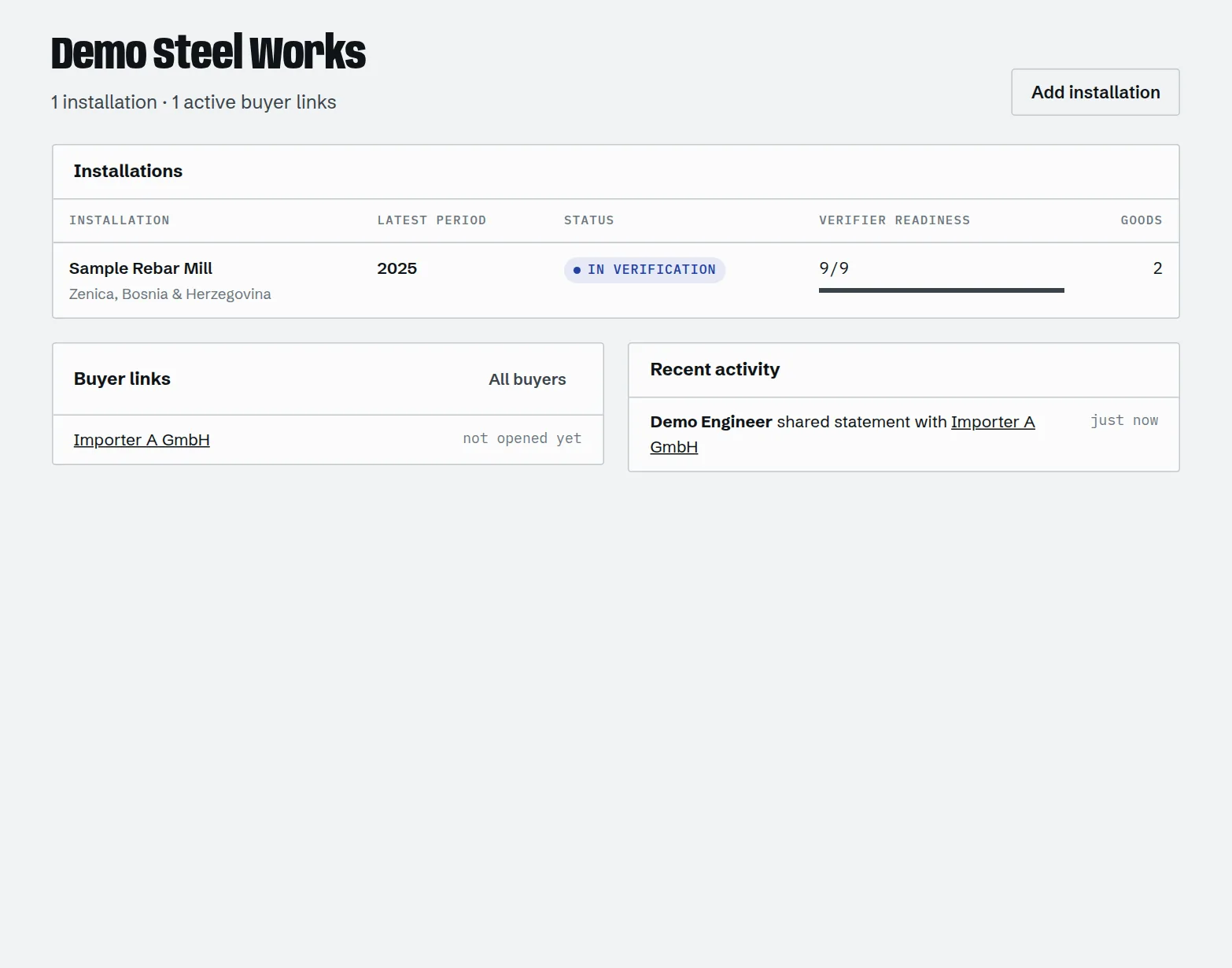
After signing up you land on the Overview. Once you have data, it shows every installation with its latest reporting period, its verification status, how many readiness checks are done, recent buyer activity and what your team changed.
Add an installation
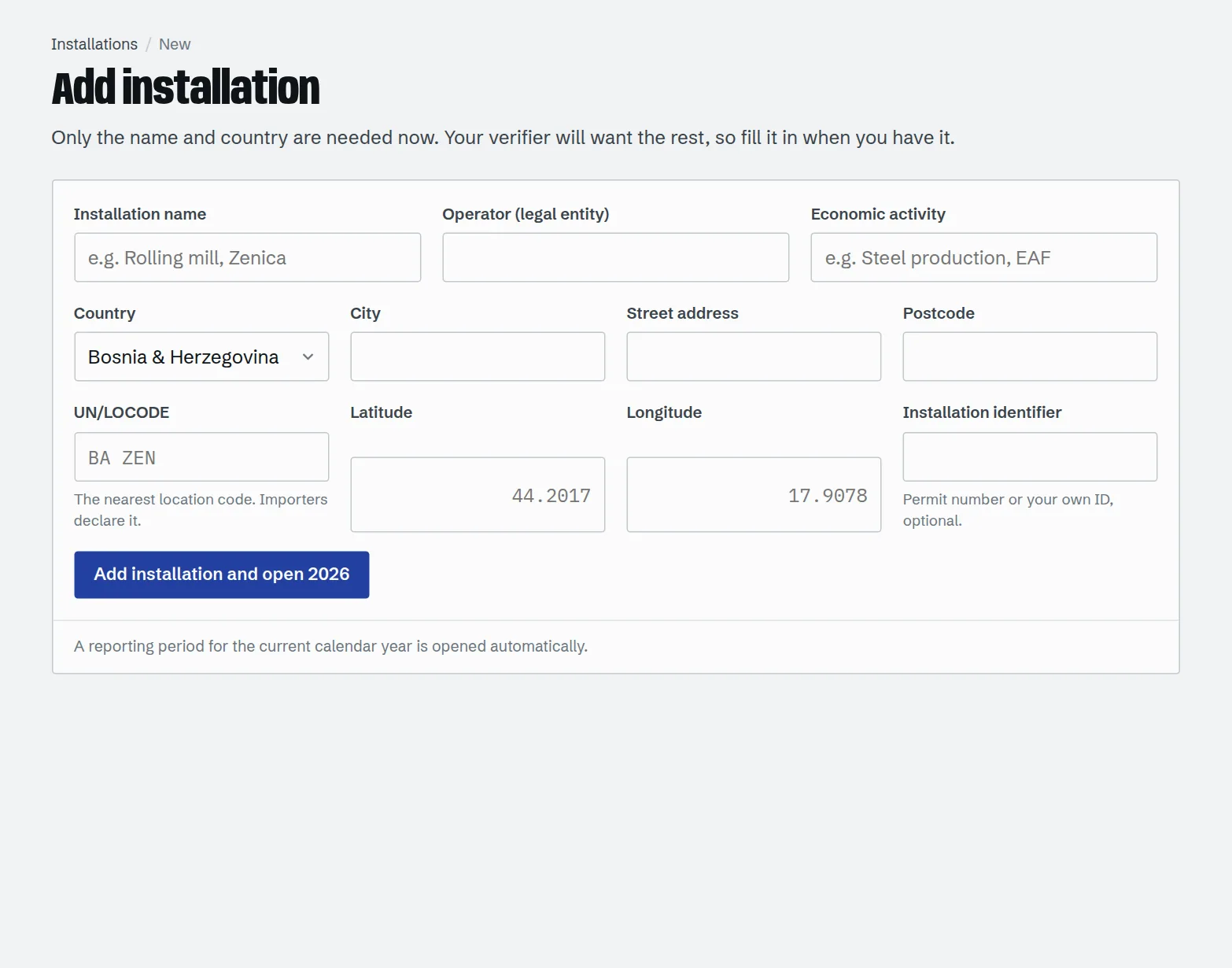
Open Installations → Add installation. Only the name and country are required to start, but your verifier and your buyers need the rest, so fill it in when you have it.
| Field | What to enter |
|---|---|
| Installation name | How you refer to the site, for example “Rolling mill, Zenica”. |
| Operator | The legal entity operating the site, if different from your company name. |
| Economic activity | A short description such as “Steel production, EAF”. |
| UN/LOCODE | The five-character location code of the nearest town, e.g. BA ZEN. Search it on the UNECE site. |
| Latitude, longitude | Decimal degrees of the site entrance, e.g. 44.2017, 17.9078. Right-click the site in any map to copy them. |
| Identifier | Your permit number or internal ID. Optional. |
When you save, Tonnemark opens a reporting period for the current calendar year and takes you straight to its Processes tab.
Reporting periods
Each installation has one reporting period per year. Everything you enter (processes, fuels, electricity, precursors, goods) belongs to a period, so last year’s verified numbers stay untouched while you work on this year.
Inside a period, the tabs across the top follow the order you’ll fill them in. A number next to a tab counts its entries; an amber dot means something there needs attention.
Open the next year
On the installation page, choose Open a new period. Pick Copy structure from last year to carry over processes, fuels and materials (with their allocations) and goods. Quantities start at zero, so you only update the numbers.
Status, verifier and locking
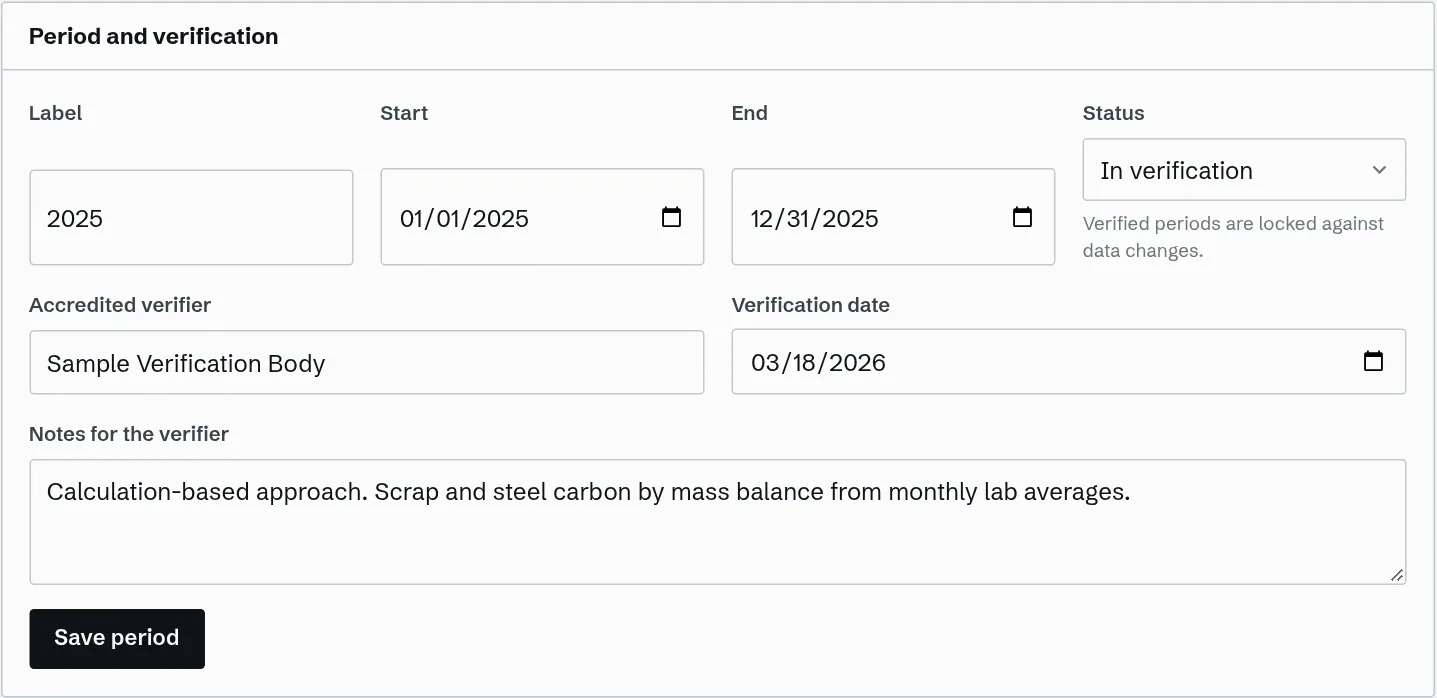
In Period settings you can change the dates, record your accredited verifier and verification date, and leave notes for the verifier: your monitoring approach, system boundaries and known gaps.
| Status | Meaning |
|---|---|
| Draft | You’re still entering data. |
| In verification | The verifier is reviewing it. Statements say “In verification”. |
| Verified | Data is locked against changes. Statements carry the verified stamp. Only an owner can reopen it. |
Production processes
Add one process for each aggregated goods category and route your site produces. A typical EAF mini-mill has two: an electric arc furnace making crude steel and a rolling mill making iron or steel products. A cement plant usually has a clinker kiln and a grinding process.
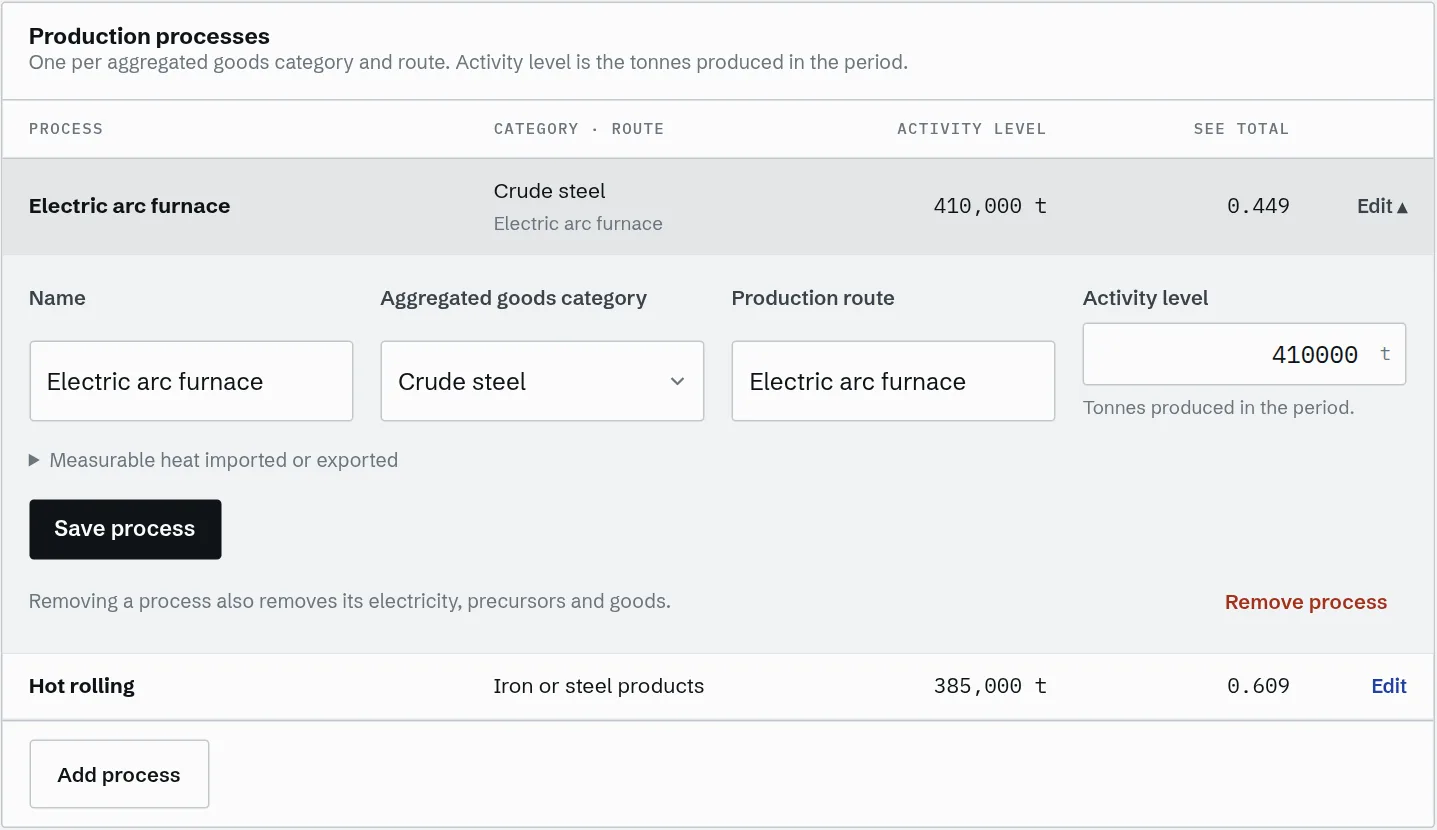
- Aggregated goods category: grouped by sector (cement, iron and steel, aluminium, fertilisers, hydrogen).
- Production route: for example basic oxygen, electric arc furnace or secondary aluminium. Optional where the regulation doesn’t distinguish routes.
- Activity level: tonnes produced in the period, from your production log.
- Measurable heat imported or exported: only if the process buys or sells steam or hot water, entered as the emissions of that heat in tCO₂e. Imports add to the process; exports subtract.
Fuels and materials
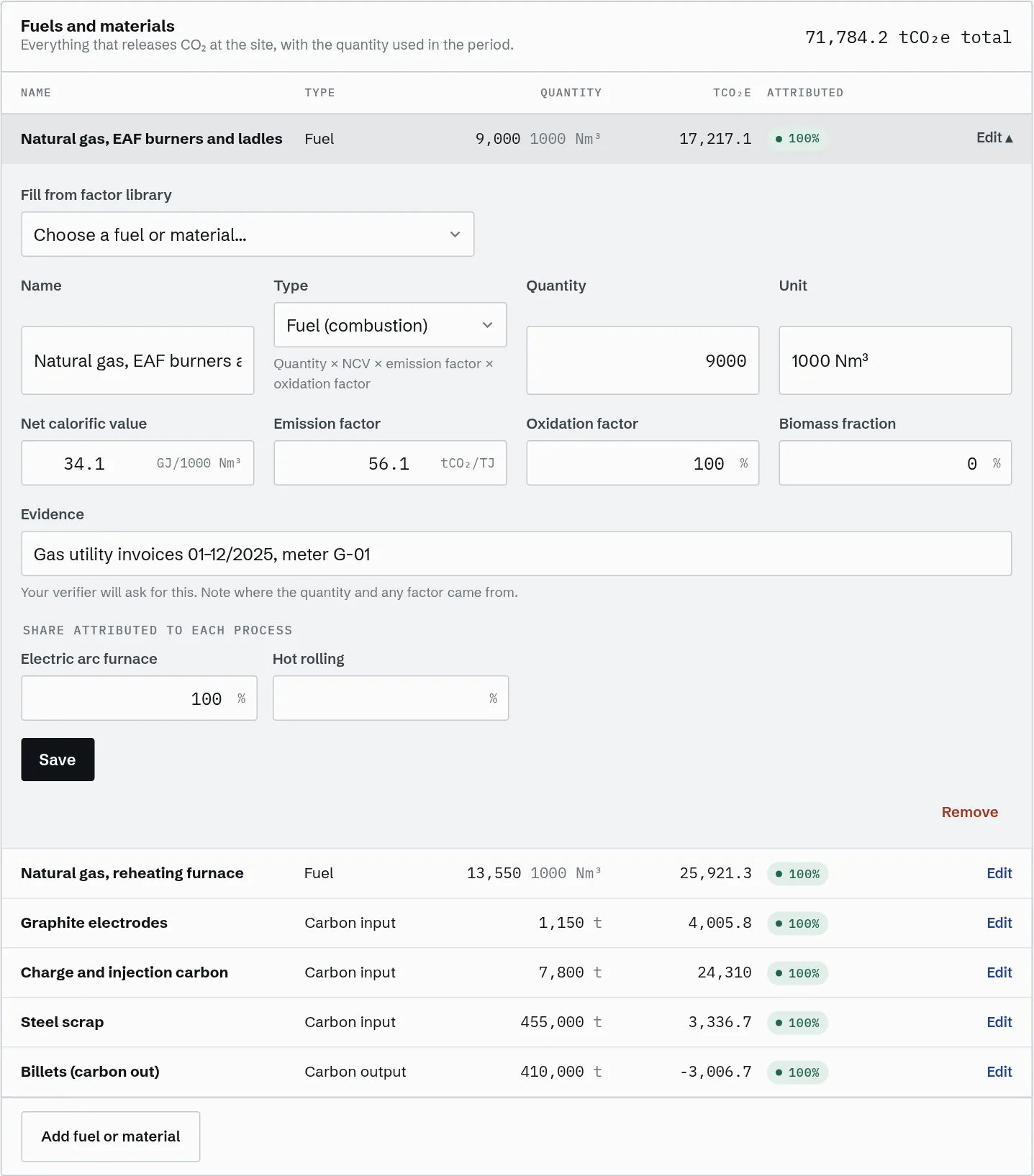
Enter everything that releases CO₂ at the site, with the quantity used in the period. Choose the type that matches how the emissions are calculated:
| Type | Use for | You enter |
|---|---|---|
| Fuel (combustion) | Natural gas, diesel, coal, petroleum coke | Quantity, net calorific value (GJ per unit), emission factor (tCO₂/TJ), oxidation factor |
| Process material | Limestone, dolomite, other carbonates | Quantity, emission factor (tCO₂ per unit), conversion factor |
| Carbon input (mass balance) | Electrodes, charge carbon, scrap | Quantity and carbon content (tC per unit) |
| Carbon output (mass balance) | Carbon leaving in products or residues | Quantity and carbon content; it is subtracted |
Use the factor library
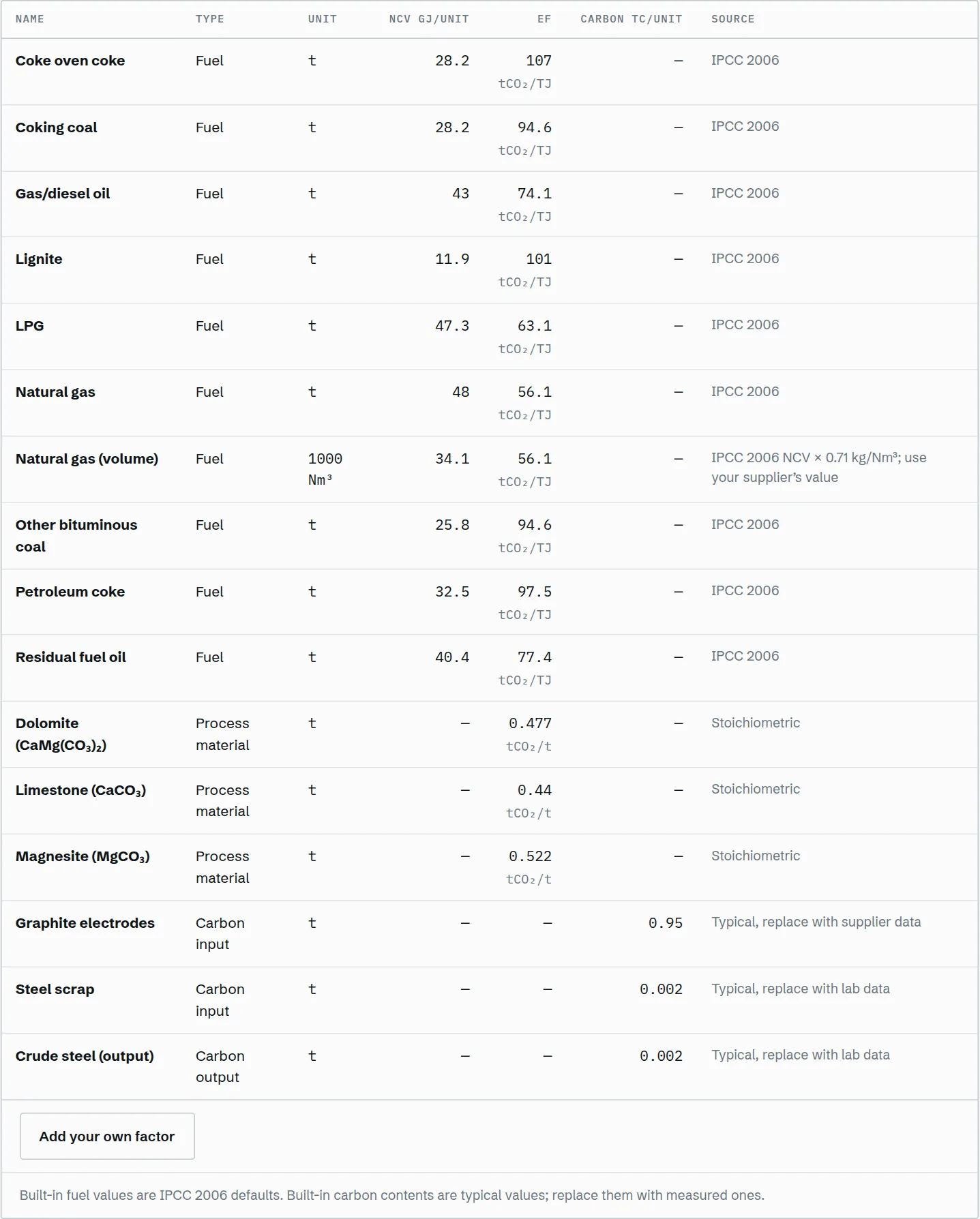
Fill from factor library pre-fills the type, unit, calorific value, emission factor or carbon content. The built-in fuel values are IPCC 2006 defaults. Wherever you have supplier certificates or lab analyses, add your own values under Factor library; verifiers prefer them.
Attribute each stream to processes
At the bottom of the form, split the stream across processes in percent. If a gas meter serves both the furnace and the reheating furnace, enter the split from your sub-meters. Each stream should add up to 100%: the Attributed column shows a green 100% when it does, and an amber percentage when part of it isn’t assigned yet.
Always cite evidence
The Evidence field is where you note invoice numbers, meter IDs and lab reports. The verifier will ask for exactly this, and the readiness checklist flags any stream without it.
Electricity
Record the electricity each process consumed, in MWh, with the emission factor of that electricity. These are your indirect emissions.
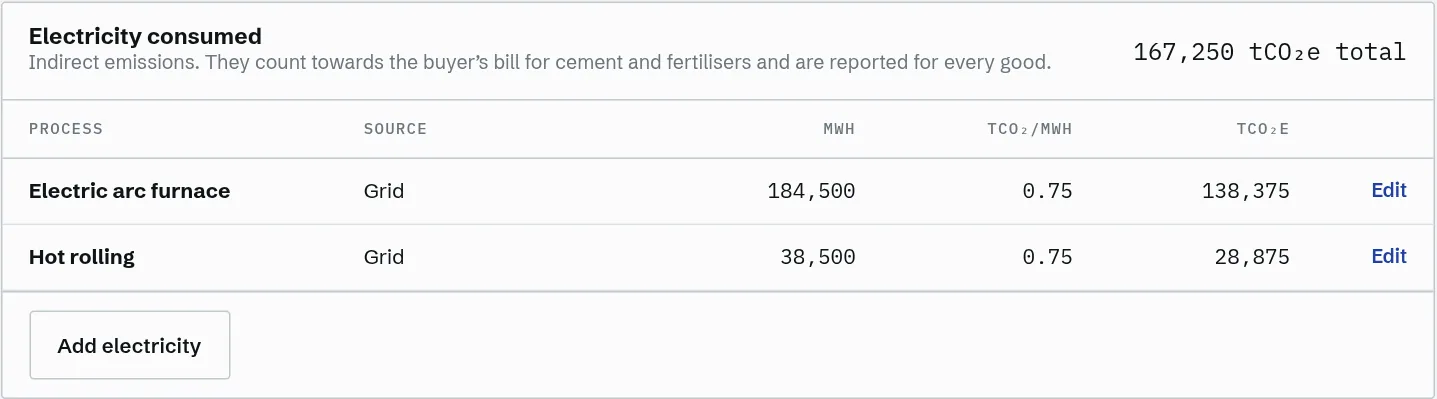
- Grid: use the country factor the European Commission publishes for CBAM.
- Power purchase agreement or on-site generation: use the actual factor of that generator, with the contract or metering as evidence.
- If a process uses no electricity, enter 0 MWh so the verifier can see it was checked.
Precursors
A precursor is a CBAM good consumed by another process: billets into a rolling mill, clinker into cement grinding, ammonia into fertiliser. Its embedded emissions are carried into your product.
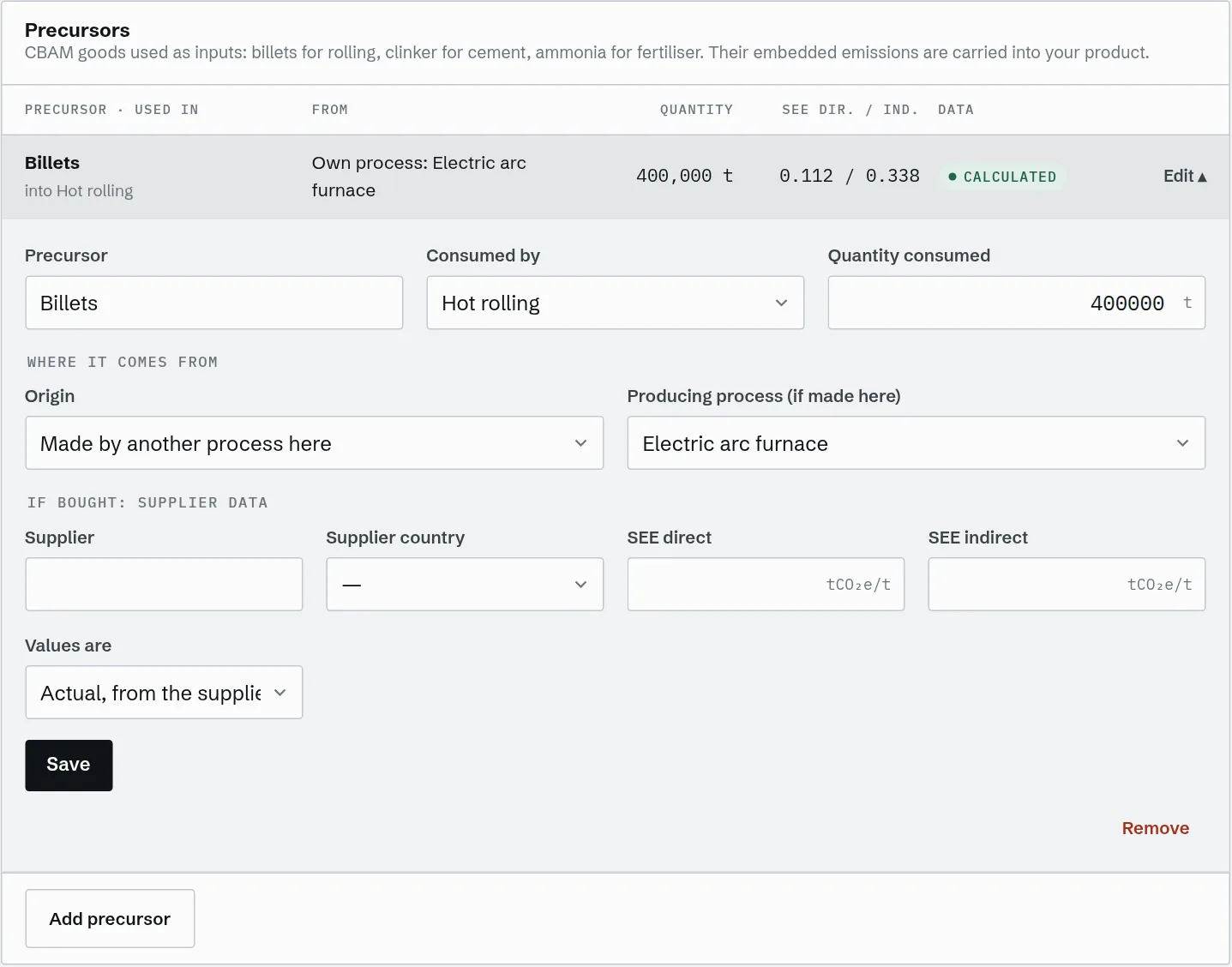
| Origin | How it’s handled |
|---|---|
| Made by another process here | Pick the producing process. Tonnemark carries its calculated intensity automatically, so if you change the furnace data the rolling mill updates too. |
| Bought from a supplier | Enter the supplier, their country, and the direct and indirect intensity from their own data. Mark whether those values are actual or EU defaults. |
Goods and CN codes
List every product you export to the EU with its 8-digit CN code, the code on your buyer’s customs declaration, and the process that makes it. Each good inherits that process’s intensity.
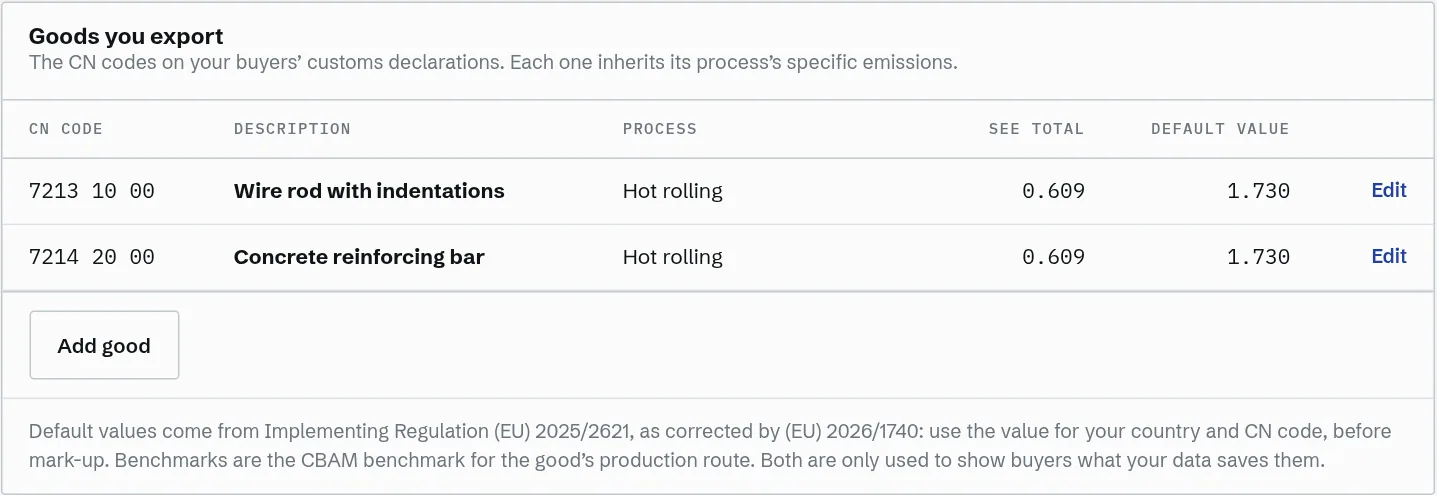
- CN code: 8 digits, spaces optional (e.g.
7214 20 00). - Default value (optional): the EU default for your country and CN code, before mark-up, from Implementing Regulation (EU) 2025/2621 as corrected by (EU) 2026/1740.
- CBAM benchmark (optional): the benchmark for the good’s production route.
The default value and benchmark don’t change your emissions. They power the comparison on the Results tab that shows each buyer what your data saves them, which is the strongest argument for staying their supplier.
Reading the results
The Results tab recalculates every time you save. At the top: total direct and indirect emissions, anything not yet attributed to a process, and how many readiness checks are done. Messages in amber explain anything that stops a number being calculated.
Specific embedded emissions by process
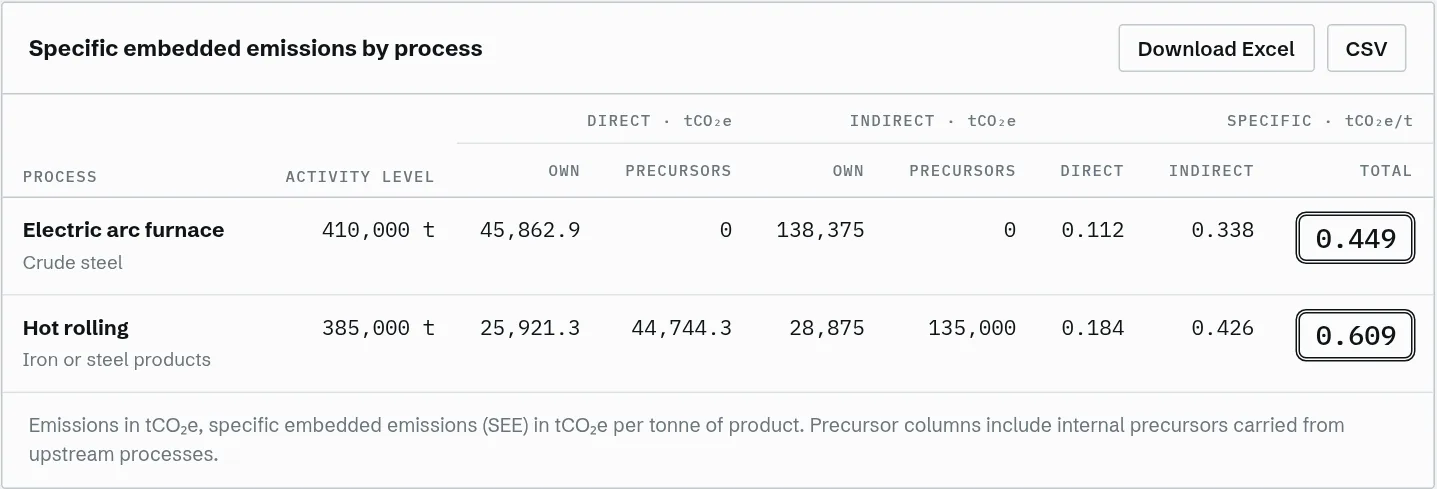
For each process you see its own direct and indirect emissions, the emissions it inherits from precursors, and the resulting intensity per tonne. The framed figure on the right is the total, the number your buyers need. Download the full breakdown as Excel or CSV from the buttons above the table.
What your buyers pay
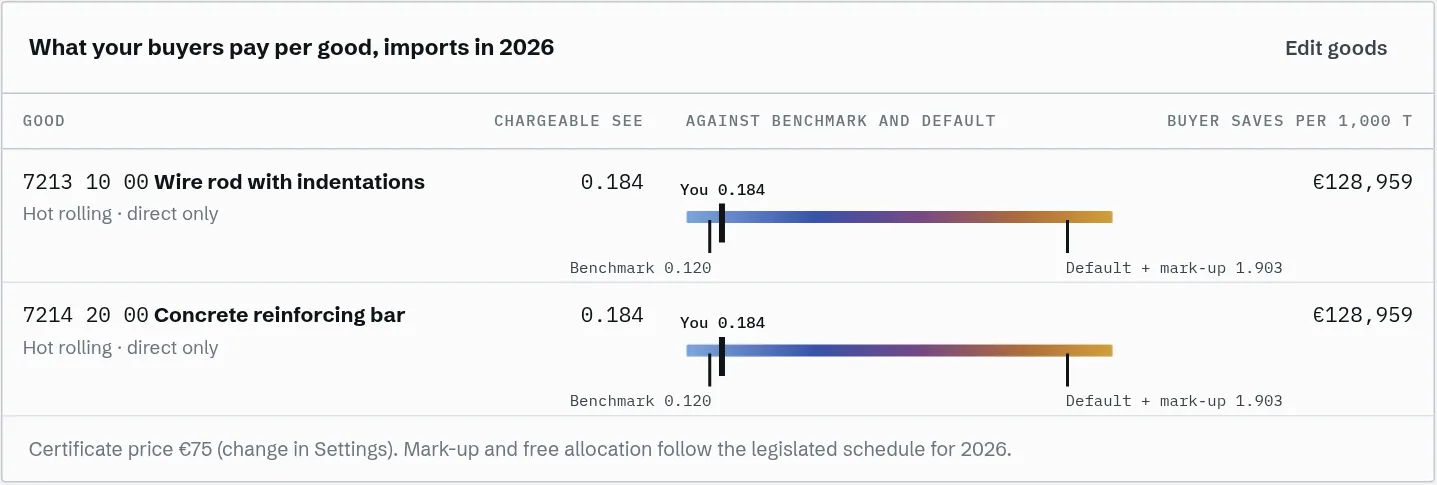
For each good, the bar places your chargeable intensity between the EU benchmark and the default value with its mark-up for the coming import year. The last column is what one buyer saves per 1,000 tonnes by using your data instead of the default, at the certificate price set in Settings.
Before your verifier visits
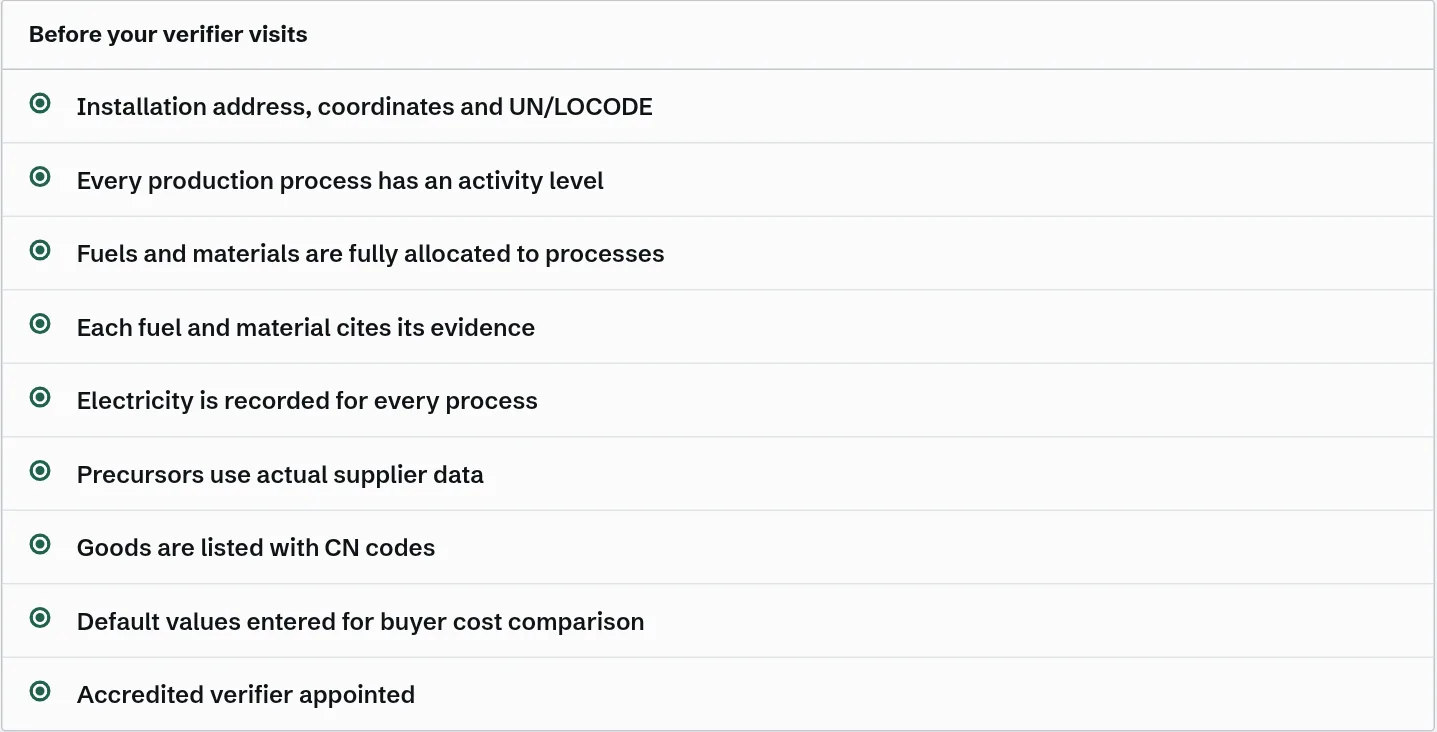
Nine checks mirror what an accredited verifier asks for:
- Installation address, coordinates and UN/LOCODE are filled in.
- Every production process has an activity level.
- Fuels and materials are fully attributed to processes.
- Every fuel and material cites its evidence.
- Electricity is recorded for every process.
- Precursors use actual supplier data.
- Goods are listed with CN codes.
- Default values are entered for the buyer comparison.
- An accredited verifier is appointed.
Share with EU buyers
Add your buyers
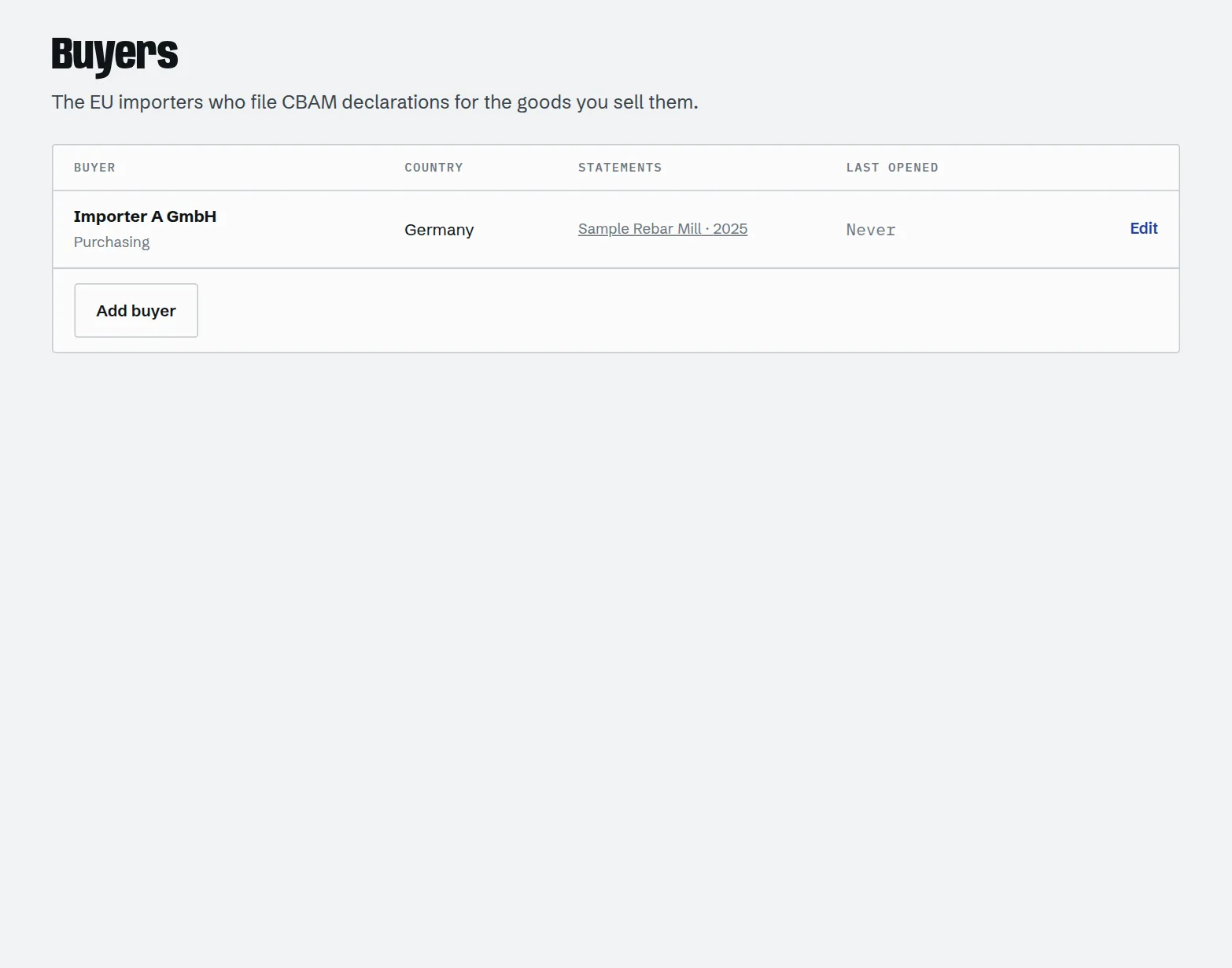
Under Buyers, add each EU importer: company, country, EORI number if you have it, and a contact. The list shows which statements each buyer has and when they last opened one.
Create a statement link
In a reporting period, open Share with buyers. Choose the buyer, when the link expires and which goods to include (a buyer only sees the goods you tick), then Create link. Copy the link and send it to your buyer by email.
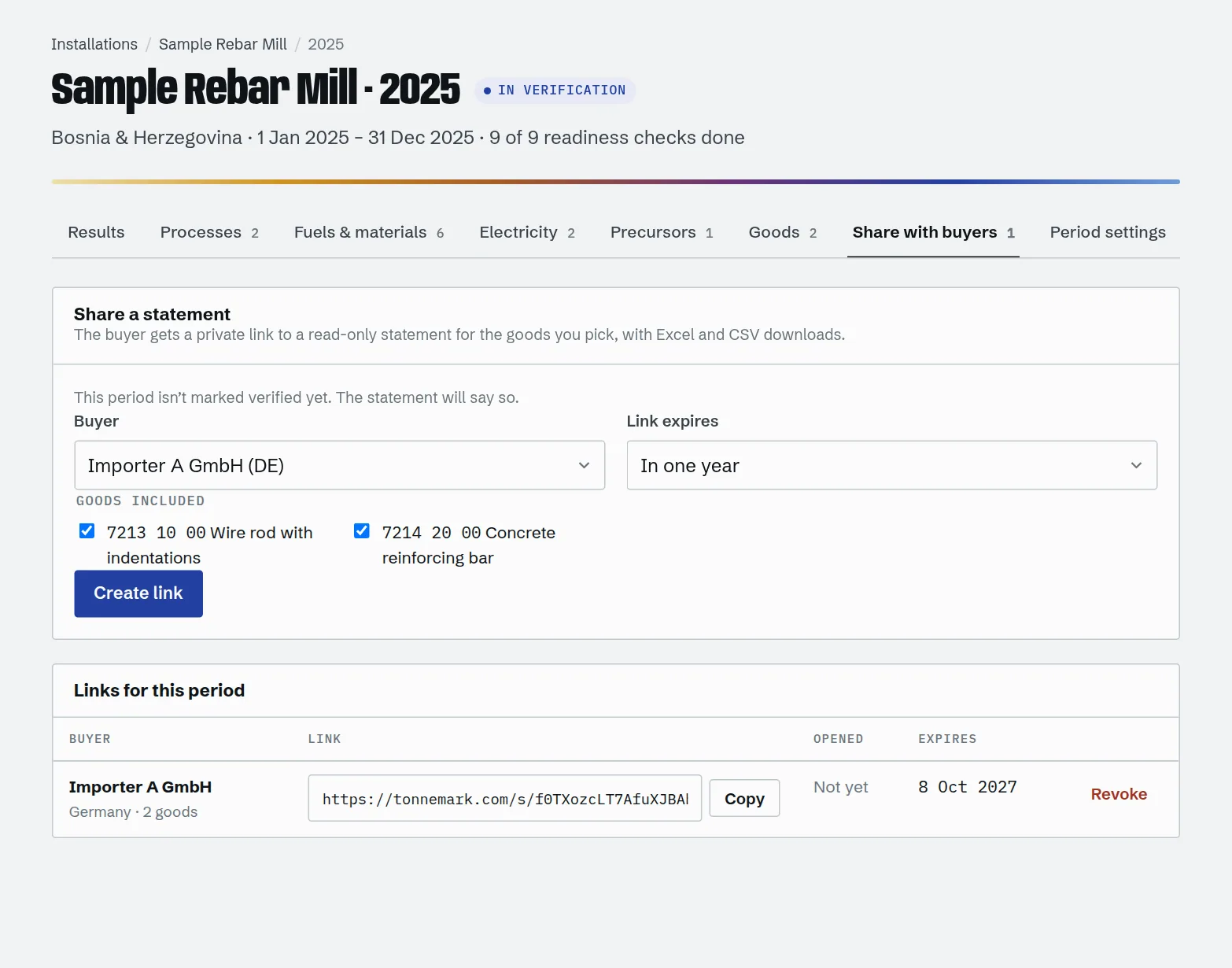
- Opened: how many times the buyer viewed it and when. Useful before their filing deadline.
- Revoke: switches the link off immediately. Create a new one if you need to.
- You can share before verification. The statement then says the period isn’t verified yet.
What your buyer sees
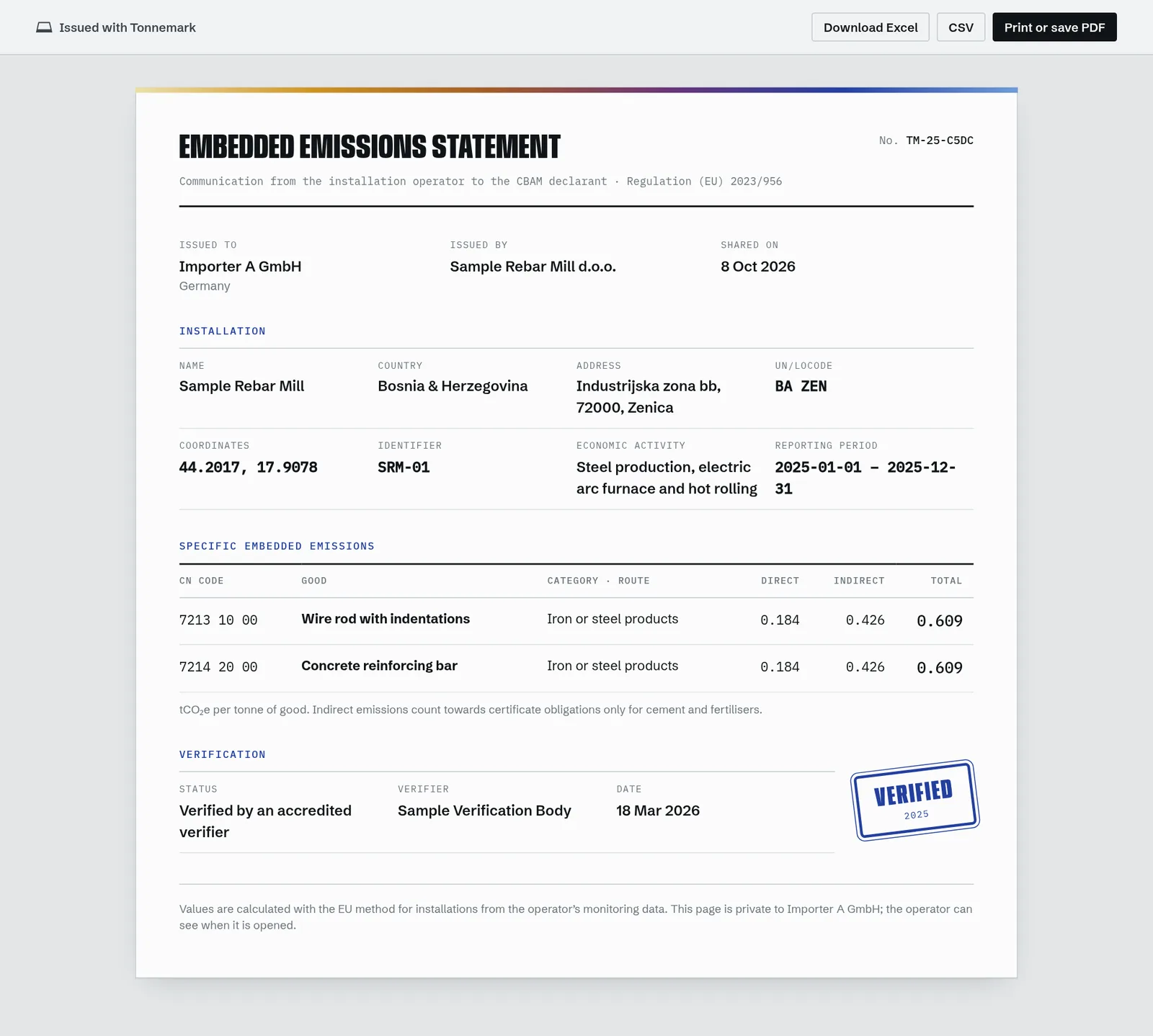
A read-only statement with your installation details, the specific embedded emissions per CN code, and the verification status. They can download it as Excel or CSV, or print it to PDF. They don’t need an account. Open the sample statement.
Excel, CSV and PDF
The Excel workbook is laid out after the sheets of the EU communication template for installations, so values can be transferred into the official template if a declarant requires it.
| Sheet | Contents | In buyer download |
|---|---|---|
A_InstData | Installation, operator, location, period and verification | Yes |
Summary_Products | Each good: CN code, category, route, direct, indirect and total intensity | Yes, shared goods only |
B_EmInst | Every fuel and material with its factors, emissions and evidence | No |
D_Processes | Attributed emissions and intensities per process | No |
E_PurchPrec | Precursors, suppliers and their intensities | No |
Electricity | Consumption and factors per process | No |
The CSV has one row per good with installation, location, period, CN code, intensities and verification status, ready for a buyer’s customs software. To make a PDF, use Print or save PDFon a statement or invoice and choose “Save as PDF”.
Team and roles
Under Team, owners invite colleagues by email and choose their role. Tonnemark emails them an invitation link, which you can also copy from the page. It works once and expires after 14 days.
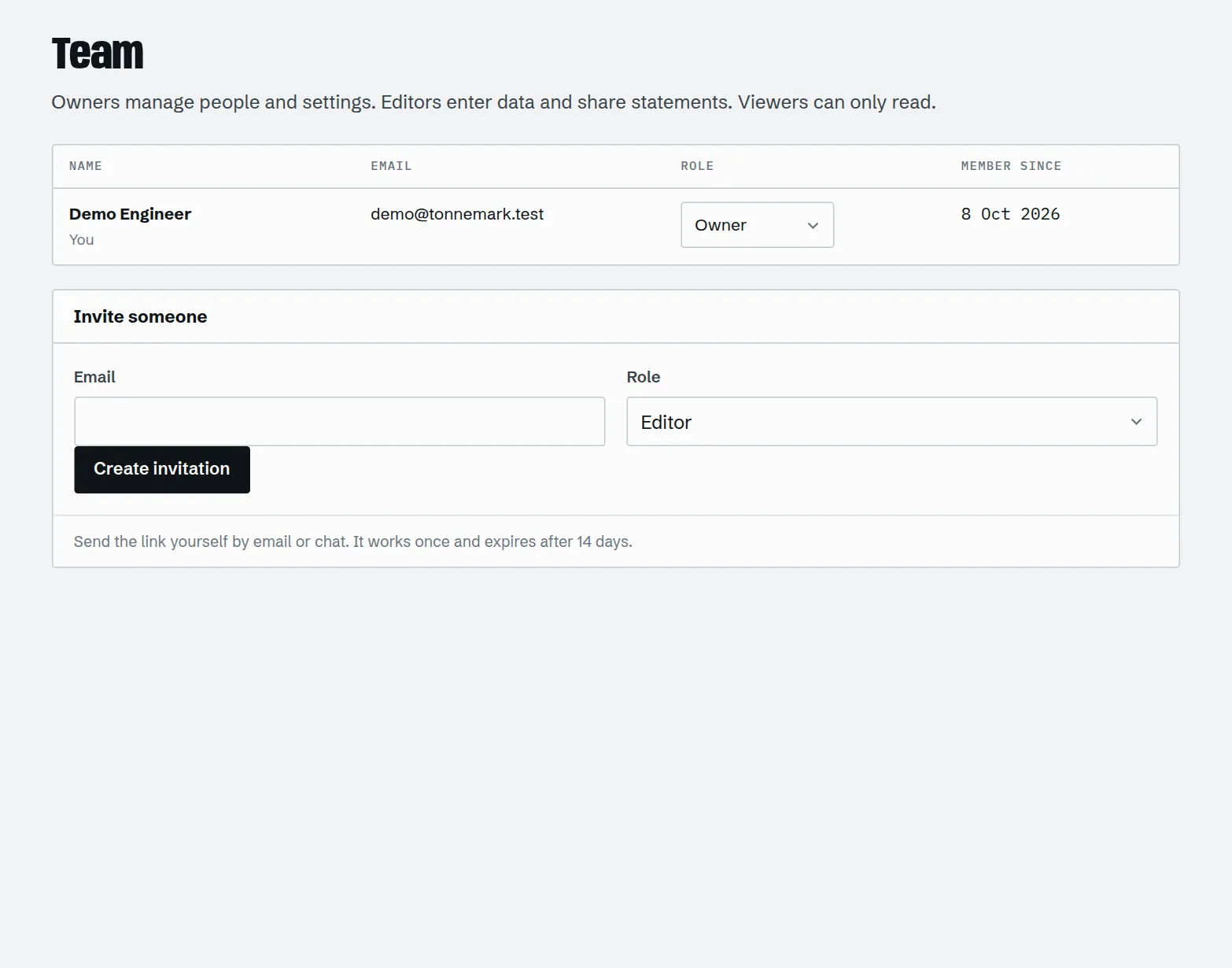
| Role | Can |
|---|---|
| Owner | Everything, plus team, workspace settings, deleting installations and periods, reopening verified periods. |
| Editor | Enter and change data, add buyers, create and revoke statement links. |
| Viewer | Read everything and download exports. Good for management or your verifier. |
Every change is recorded in Recent activity on the Overview with who made it.
Billing and invoices
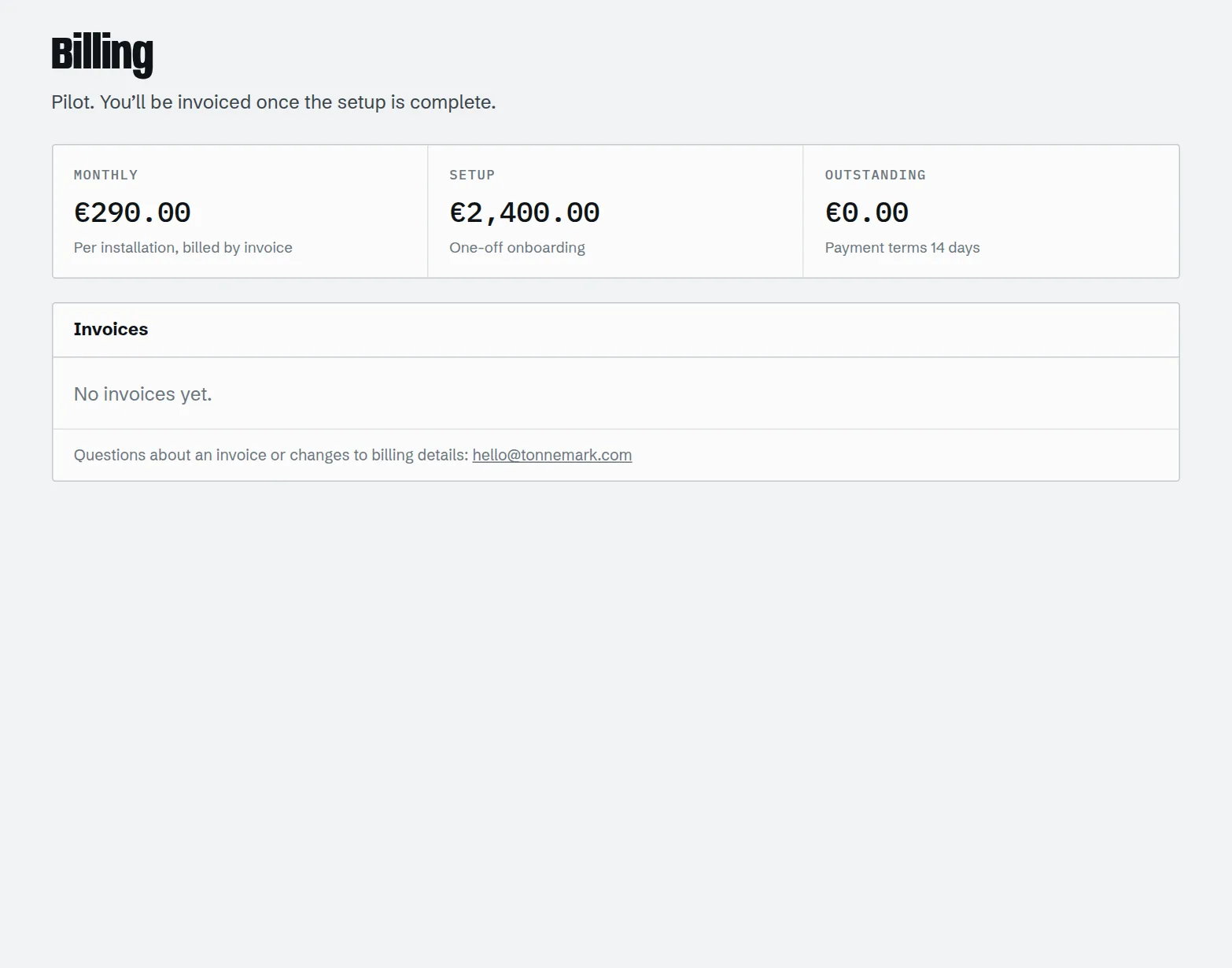
Tonnemark is billed by invoice: a one-off setup fee for onboarding, then a monthly fee per installation. Billing shows your plan, what’s outstanding and every invoice, each of which you can open and save as PDF.
How payment works
- When an invoice is issued, it’s emailed to your billing address, and a notice at the top of the workspace shows the amount and due date. Invoices are due within 3 days unless agreed otherwise.
- Pay by bank transfer to the account on the invoice, with the invoice number as the reference. Then press I’ve made the payment next to the invoice, optionally with a note such as the date and bank.
- We confirm the payment as soon as it reaches our account. You get a receipt by email and the invoice shows as Paid.
If an invoice is overdue
- We email a reminder the day before an invoice is due, and again once it’s overdue.
- From the day after the due date, a reminder with the payment details appears when you open the workspace. You can postpone it for a day.
- Seven days after the due date, the workspace becomes read-only until payment is confirmed. You can still sign in, read everything and download exports, and your buyers’ statement links keep working.
- Reporting your payment pauses the reminder and the read-only lock for 5 days while the transfer arrives.
- Need more time? Email us before the due date and we can extend it.
Calculation reference
Tonnemark follows the EU calculation-based method for installations. All emissions are in tCO₂e; biomass shares are excluded from fuel and material emissions.
Fuels and materials
emissions = quantity × NCV ÷ 1000 × emission factor × oxidation factor × (1 − biomass share)emissions = quantity × emission factor × conversion factor × (1 − biomass share)emissions = quantity × carbon content × 44/12 × (1 − biomass share)emissions = − quantity × carbon content × 44/12Processes and goods
Σ(stream emissions × share to process) + heat imported − heat exportedΣ(MWh × electricity emission factor)(attributed direct + Σ precursor tonnes × precursor SEE direct) ÷ activity level(attributed indirect + Σ precursor tonnes × precursor SEE indirect) ÷ activity levelInternal precursors are evaluated first, so a change upstream flows through to every downstream process. A loop between processes is reported instead of producing a number.
What the buyer pays
max(0, chargeable SEE − benchmark × CBAM factor)Chargeable SEE is direct only for iron, steel, aluminium and hydrogen, and direct plus indirect for cement and fertilisers. On default values the same formula uses the default plus its mark-up.
| Import year | Mark-up on defaults | CBAM factor (benchmark still free) |
|---|---|---|
| 2026 | 10% | 97.5% |
| 2027 | 20% | 95% |
| 2028 | 30% | 90% |
| 2029 | 30% | 77.5% |
| 2030 | 30% | 51.5% |
| 2034 | 30% | 0% |
Mark-ups: Implementing Regulation (EU) 2025/2621 (fertilisers 1% flat). Free allocation phase-out: ETS Directive, Art. 10a(1a). The certificate price is your assumption, set in Settings. Rules as of October 2026; check for amendments before relying on cost estimates.
Troubleshooting
“… is allocated 80% to processes, not 100%.”
Part of that fuel or material isn’t assigned to any process, so its emissions are left out of every product. Edit the stream in Fuels & materials and make the shares add up to 100%.
“… has no activity level, so its specific emissions can’t be calculated.”
The process has 0 tonnes produced. Edit it in Processes and enter the tonnes from your production log.
“… depends on itself through internal precursors.”
Two processes are set as each other’s precursor, directly or through a chain. Check Precursors and remove the entry that points backwards.
“This period is verified and locked.”
Verified periods can’t be changed so the numbers stay consistent with the verification. An owner can set the status back to In verification in Period settings if a correction is needed.
“This workspace is read-only because an invoice is overdue.”
An invoice is more than 7 days past its due date. Pay it and press “I’ve made the payment” under Billing: editing resumes immediately while we confirm the transfer. You can still read and export everything, and buyer links keep working.
My buyer says the link doesn’t work.
It may have expired or been revoked. Check the period’s Share with buyers tab and create a new link if needed.
I forgot my password.
Use “Forgot your password?” on the sign-in page. We email a one-time link that expires after 2 hours. If it doesn’t arrive, check spam for mail from hello@conyro.io.
The verifier’s number differs from Tonnemark’s.
Compare the B_EmInst and D_Processes sheets of the Excel export with their workpapers. Differences usually come from a factor (use your supplier’s or lab’s value), a missing stream, or an allocation split.
Still stuck? Email hello@tonnemark.com or book a walkthrough and we’ll go through your data with you.
Book a walkthrough